

Epson L5290 Printer E-11 Error Reset Guide | Ink Pad Needs Service Fix
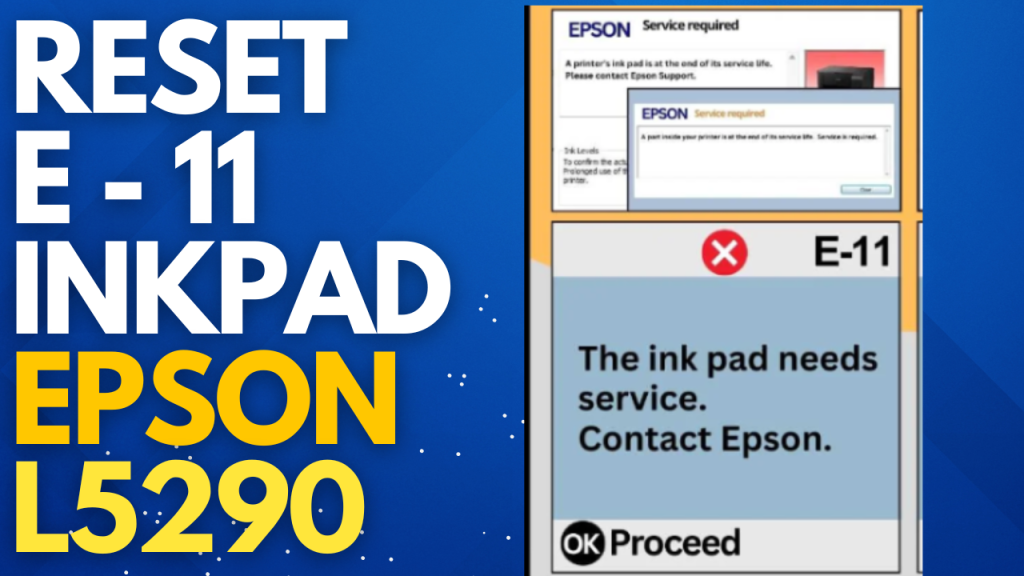
If you are using an Epson L5290 printer and suddenly encounter the error message “E-11: The Ink Pad Needs Service, Contact Epson”, don’t worry, you are not alone. This is a very common issue with Epson inkjet printers when the internal waste ink pad reaches its service limit.
In this post, I will explain what this error means, why it happens, and most importantly, how you can reset the E-11 error in Epson L5290 using the Epson Adjustment Program (third-party reset utility).
🔎 What is the E-11 Error in Epson L5290?
The E-11 error occurs when the printer’s internal waste ink pad counter reaches its maximum limit. The waste ink pad is a sponge-like part inside the printer that collects excess ink during printing and cleaning cycles.
When this pad becomes saturated, the printer stops working to prevent ink overflow and possible damage.
⚠️ Epson’s Official Recommendation
Epson officially recommends contacting their service center to replace the waste ink pad. This is a non-user-serviceable part, and in some cases, replacement may be the best option if the pad is physically full.
🛠️ How to Reset Epson L5290 E-11 Error Using Adjustment Program
If you want to continue using your printer, you can reset the waste ink pad counter with a third-party Adjustment Program. This software resets the internal counter, allowing the printer to function normally again.
Steps to Reset:
- Download the Epson L5290 Adjustment Program.
- Disable Antivirus or Windows Defender before running the program (otherwise, the utility may be blocked as a false positive).
- Connect your Epson L5290 printer to your computer via USB.
- Run the Adjustment Program and select your printer model.
- Navigate to the Waste Ink Pad Counter Reset option.
- Reset the counter and restart the printer.
- Your Epson L5290 should now be back to normal.
👉 Important Note: This reset does not physically clean or replace the ink pad. If the pad is truly saturated, you may eventually need to replace it to avoid ink leakage.
🎥 Epson Repair Tutorials on YouTube
For a step-by-step video tutorial and more Epson repair guides, visit my YouTube channel.
➡️ Don’t forget to subscribe for full Epson reset and troubleshooting tutorials.
https://www.youtube.com/@bilalkhalid
Can request Epson l5290 adjustment program
We need to fix my printer